


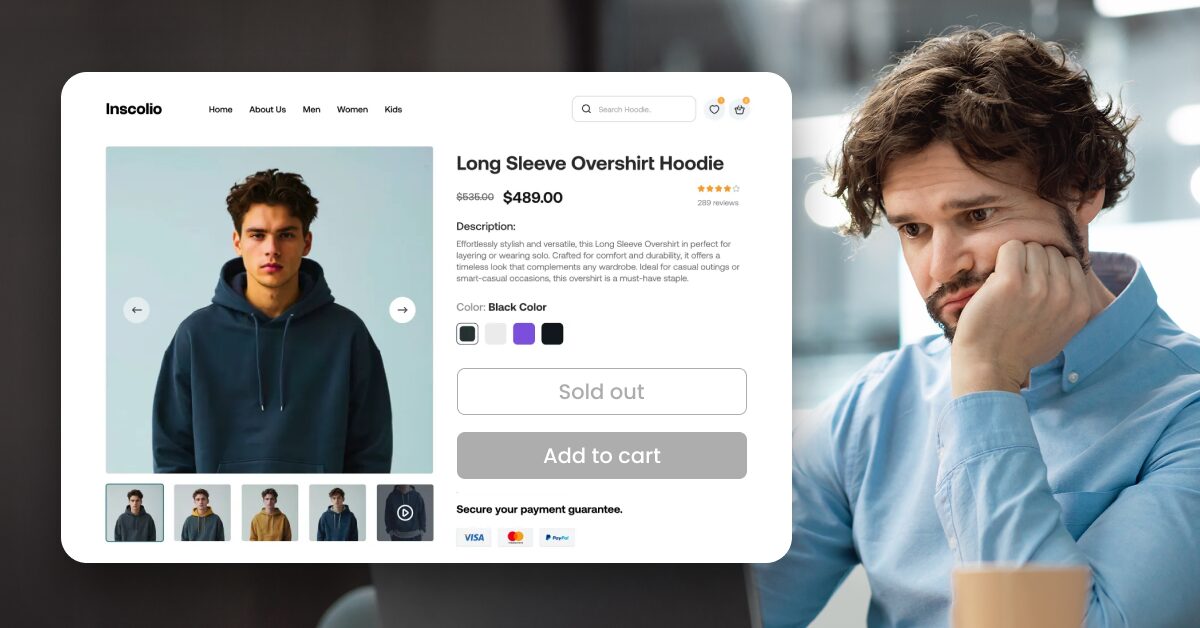
Sometimes Shopify shows a product as “Sold Out” even when the item is actually available. In most cases, this happens because of inventory tracking issues, variant settings, or synchronization delays between your store and a supplier. For dropshippers, this problem is especially common when stock levels change frequently or when listings are not automatically updated.
Automation helps solve this quickly. AutoDS keeps Shopify inventory synced with supplier stock levels automatically, reducing the chances of products appearing unavailable when they are still in stock. Instead of manually adjusting product quantities every time a supplier changes availability, automation tools monitor inventory and update listings in real time.
In this guide, we’ll break down why Shopify products show as sold out, the most common causes behind the issue, and step-by-step solutions to fix it so your store can keep selling without interruptions.
Common Reasons Why Shopify Products Show Sold Out
Before you panic, know this: the “Sold Out” message doesn’t always mean your product is gone forever. In most cases, it’s just a syncing hiccup, a setting gone unchecked, or a supplier update you didn’t catch in time. Let’s go through the most common culprits and how to fix them fast.
Inventory Issues
If your Shopify product was showing as in stock yesterday but now it’s mysteriously marked as “Sold Out,” the issue might be a failed inventory sync. This means Shopify isn’t receiving the latest stock updates from your supplier, or the update hasn’t gone through yet.
This usually happens because of API delays, an app disconnection, or even something simple like an expired token between your store and your dropshipping app.
If you’re using AutoDS or another automation tool, head into your dashboard to check if syncing is active and the product is still connected to the supplier source. A quick refresh or resync usually helps with inventory issues.
Another reason Shopify may show a product as sold out is inventory location conflicts. Shopify allows merchants to manage stock across multiple locations, warehouses, or fulfillment services. If inventory is assigned to the wrong location (or if Shopify believes stock exists in a location that is not enabled for online sales) the product can appear unavailable to customers even when units are technically in stock.
Inventory issues shouldn’t be the reason you lose sales. AutoDS keeps your Shopify products synced with supplier stock automatically, so listings stay active when items are still available. 🔥 Start your $1 AutoDS trial today.
Supplier Issues
Suppliers occasionally update or remove listings without notice. They might unpublish a product, change its internal ID, or relist it under a new URL. When that happens, the product you’re syncing to suddenly has no source data, so Shopify shows it as “Sold Out.”
If you suspect this is the case, go back to your product source link (AliExpress, CJdropshipping, etc.) and see if the item is still live. If it’s missing or changed, you’ll need to either update the product URL or import a new version of the listing using your app. AutoDS makes this easier by alerting you when a product goes offline or gets replaced.
Sometimes the issue is caused by synchronization delays between Shopify and external apps or suppliers. Many integrations update stock levels at scheduled intervals rather than instantly. If a supplier changes availability between sync cycles, Shopify may temporarily show a product as sold out until the next inventory update occurs.
Manual Inventory Tracking Is On
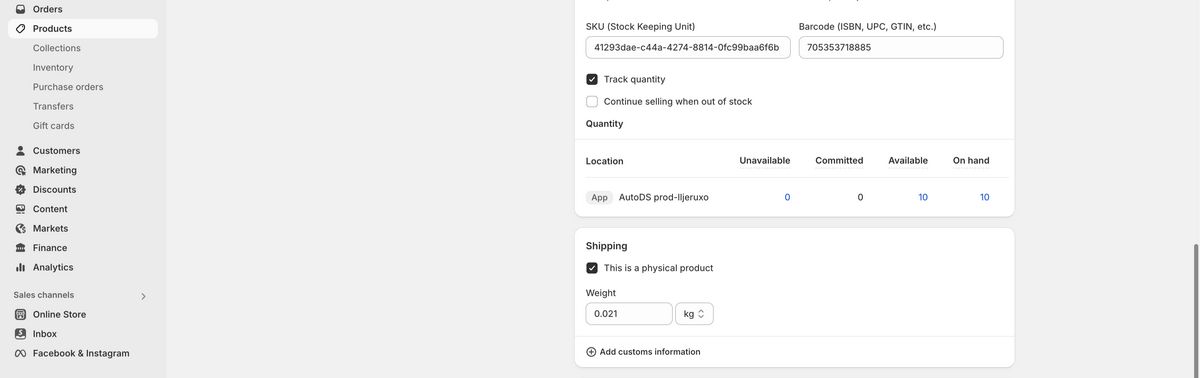
Sometimes, it’s not the supplier or app, it’s your Shopify settings. If “Track quantity” is turned on for a product but the quantity is set to zero, Shopify will automatically show that item as “Sold Out,” even if your supplier has plenty in stock.
To check this, go to the product page in your Shopify admin, scroll to the Inventory section, and see if the “Track quantity” box is checked. If it is, either uncheck it (to stop tracking manually) or update the stock to match your supplier’s inventory. If you’re using AutoDS, make sure auto-sync is enabled to update these fields automatically.
Variations or SKUs Missing Stock Info
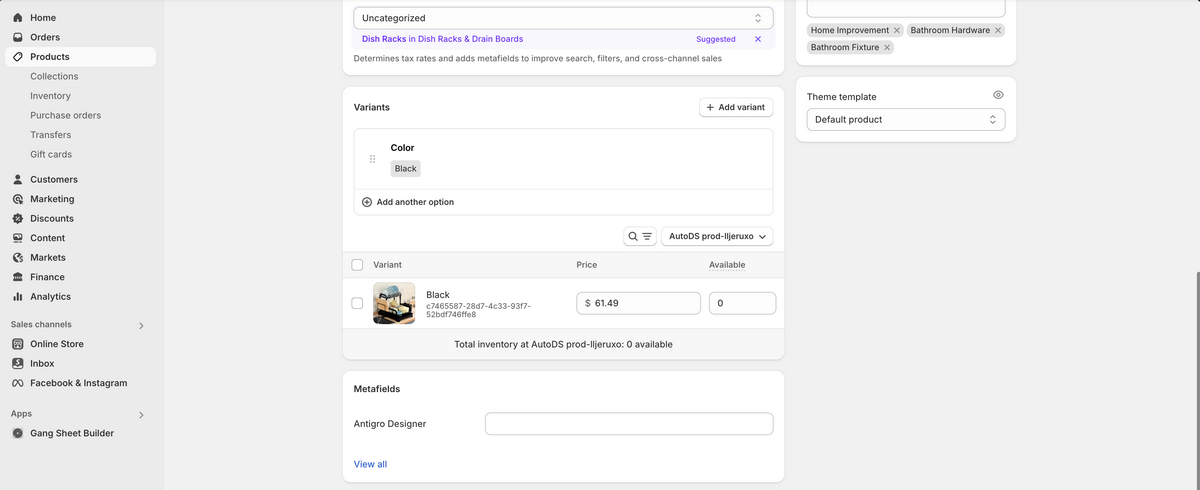
This one trips up many store owners, especially those selling products with multiple variants like size, color, or style. Even if the product is available overall, a single variant with missing stock info can cause the entire listing to show as “Sold Out.”
To fix this, go to the product in Shopify and click on each variant under the “Variants” tab. Make sure every SKU has a valid inventory quantity (or that “Track quantity” is turned off for that variant). AutoDS automatically updates stock for all variants, but only if the supplier provides that data, so double-check the source listing if something looks off.
Import or Migration Errors
When bulk-importing products, especially during a store migration, it’s easy for a few listings to slip through with incomplete data. This is especially true for complex products with multiple variants, custom fields, or supplier-side quirks.
If you’re using an import tool like AutoDS, check your product logs for failed syncs, skipped variants, or missing price fields. You may need to delete and re-import the affected product or manually fill in the missing inventory data in Shopify.
App-Specific Issues
Every app works differently, and some require extra attention. For example, some apps require you to manually enable inventory sync after importing products. Others might pause syncing if your payment method fails or if your subscription expires without warning.
If you’re using a third-party app or plugin, check the settings and subscription status to make sure syncing is active. With AutoDS, your dashboard will clearly show whether inventory monitoring is on and alert you to any issues, so you can fix them before they impact your sales.
Prevention is the best way to avoid problems. Follow along as Jordan Welch, a six-figure dropshipper, walks you through the process of launching a Shopify store the right way.
Step-by-Step: How to Fix ‘Sold Out’ Shopify Issue
Now that we know why Shopify shows your products “Sold Out”, let’s fix it. Whether it’s a Shopify setting or an issue with your dropshipping app, these steps will help you troubleshoot quickly and get your product back in stock.
Follow this quick checklist to find and resolve the issue:
Open Shopify Admin > Products > [Your Product]
Start by going straight to the product that’s showing as “Sold Out.” From your Shopify dashboard, go to Products, then click on the affected item. This is where you’ll find all the core settings that could be causing the problem.
If you’re managing a large catalog, use the search bar or filters to speed up the process.
Check inventory settings
Once you’re inside the product page, scroll down to the Inventory section.
- Is “Track quantity” enabled? If this box is checked, Shopify is using the quantity field to determine whether a product is available. If the quantity is 0, it will automatically show “Sold Out.”
- Is stock listed as zero? If yes, and you’re sure the product is in stock with your supplier, update the quantity manually or let your dropshipping app re-sync it. You can also uncheck “Track quantity” if you want Shopify to treat it as always available (not recommended for fast-moving items unless syncing is consistent).
Go to your dropshipping app
Now switch over to your product automation tool. If you’re using AutoDS, one of the best dropshipping platforms for Shopify stores, this part is quick and visual.
- Is the product mapped correctly? Head to your product list in AutoDS and confirm that the product is still connected to the correct supplier listing. If not, you may need to remap or re-import it.
- Check sync history — did it fail? Look at the recent sync logs. If syncing failed due to an expired syncing token or a changed product link (both of which break the connection between your supplier and Shopify), you’ll see a notification or error code. Most apps will let you retry the sync manually or re-authenticate the connection.
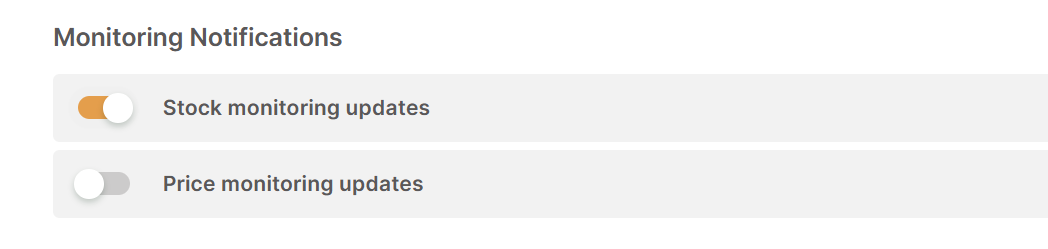
- Ensure auto-sync is turned on. In AutoDS, inventory and price sync can be toggled on or off per product. Make sure auto-sync is active, especially if you imported the item manually or paused syncing earlier.
💡 Pro Tip: Use AutoDS’s dashboard alerts to catch sync issues before your customers do.
Confirm the product still exists
Even if everything looks fine on your Shopify store end, your supplier might have changed something behind the scenes. Open the original product link from the supplier (AliExpress, CJdropshipping, Temu, etc.) and make sure the listing is still live.
If the page is gone, shows an error, or the item is marked as unavailable, Shopify won’t be able to pull stock data, so it defaults to “Sold Out.” Some suppliers also quietly relist products under a new URL or ID, which can break the link with your store.
Re-import or link a new version if needed

If the original listing has been removed, you’ll need to take action fast:
- Option 1: Use your dropshipping tool (like AutoDS) to find and import a similar or updated version of the product.
- Option 2: If the product was relisted with a new URL, remap it manually using your app’s product mapping feature.
AutoDS simplifies the importing process with its one-click importer and automatic variant linking, so you won’t have to do it all by hand.
Check variant-level stock
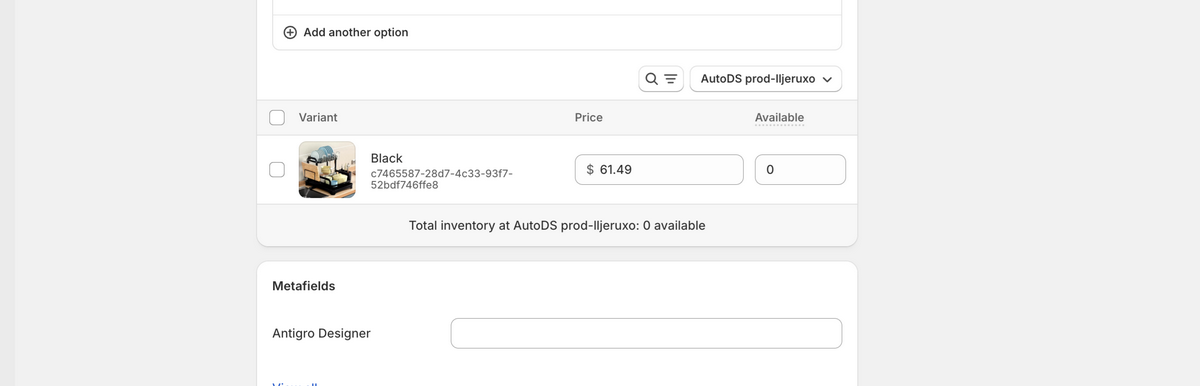
Some products (especially those with size, color, or style options) might show as “Sold Out” because one or more variants have no inventory. Even if the main product says it’s available, Shopify will show it as unavailable if all the variants are out of stock or misconfigured.
To fix this, go to the Variants section of the product in Shopify. Click through each one and check:
- Is “Track quantity” turned on for each variant?
- Does any variant show a stock level of 0?
- Are all SKUs connected to your supplier listing?
Update any missing or incorrect inventory data manually, or let AutoDS re-sync it from the supplier if auto-sync is enabled.
Save your changes and review
Once you’ve fixed inventory settings, checked your supplier listing, and updated variant-level data, remember to save your changes in Shopify. Many store owners troubleshoot everything but forget to hit “Save,” and the product remains stuck in “Sold Out” mode.
After saving, click “View” (at the top right of the product page in Shopify) to preview the live product. If everything worked, it should now show as in stock and available for purchase.
If it still shows “Sold Out,” revisit the previous steps—or move on to our next section on preventing this issue from happening again.
Prevent Shopify “Sold Out” Problems With AutoDS
Fixing the “Sold Out” issue in Shopify is helpful, but the real goal is preventing it from happening again. The most reliable way to avoid Shopify products showing as sold out incorrectly is to keep supplier inventory synchronized with your store automatically. When stock levels change at the supplier level and your store does not update in time, Shopify may display products as unavailable even though inventory still exists.
Automation solves this problem. AutoDS monitors supplier inventory and automatically updates Shopify product listings, helping ensure that your store always reflects the latest stock availability.
Use AutoDS to Keep Your Store Synced
AutoDS helps dropshipping stores stay aligned with supplier data by automating inventory monitoring, price updates, and product synchronization. Instead of manually checking stock levels or editing product quantities, the platform continuously tracks supplier listings and updates your Shopify store when changes occur.
To reduce the chances of products showing as sold out unexpectedly, configure these automation settings inside AutoDS:
- Enable auto-sync for inventory and pricing. Inside AutoDS, make sure both inventory and price monitoring are turned on for every product. This keeps your Shopify listings accurate, even when your supplier updates stock or adjusts prices.
- Set a frequent sync interval. We recommend syncing hourly or at least every few hours. That way, even if your supplier sells out or updates inventory, your store reflects it before customers hit “Add to Cart.”
- Keep supplier connections and tokens up to date. If your API tokens or app permissions expire, syncing will break without warning. AutoDS will alert you when a token is nearing expiration, so don’t ignore those notifications.
- Monitor supplier listings for changes. Suppliers sometimes delete or relist products under new URLs. AutoDS helps by flagging these changes for you, but it’s also good practice to review your top products regularly.
- Use AutoDS price/stock protection tools. You can set automation rules to pause listings when they go out of stock and re-activate them when inventory returns. You can also enable dynamic pricing rules to maintain your profit margins if supplier prices change unexpectedly.
By keeping these systems in place, you’re preventing “Sold Out” issues and protecting your customer experience, your sales, and your peace of mind.
“Scaling an e-commerce business requires the best systems. Do as I do, and use AutoDS to automate your Shopify store and find winning products. Secure your trial for just $1! Let’s get it!” – Jordan Welch
Frequently Asked Questions
Why does Shopify show my product as sold out when it’s still available?
Shopify shows a product as sold out when the platform detects zero inventory for the selected product variant or cannot confirm available stock. This often happens when inventory tracking settings are misconfigured or when supplier stock levels are not synchronized with the Shopify store. AutoDS automatically synchronizes supplier inventory with Shopify, ensuring product availability updates whenever stock levels change.
Why does Shopify show “0 available” even when I added inventory?
Shopify may show “0 available” if inventory is assigned to the wrong location or if the product variant inventory is not properly configured. Shopify’s multi-location inventory system requires stock to be available in a location that supports online sales. If inventory exists in a warehouse that is not active for the online store, Shopify may still display the product as unavailable.
Why do products show as sold out after importing them to Shopify?
Products can appear sold out after import if inventory quantities are not set during the product import process or if supplier data has not synced yet. Some imported products default to zero inventory until stock information is updated. This is common when importing from external suppliers or marketplaces.
Why does Shopify show some variants as sold out but not others?
Shopify tracks inventory at the variant level, which means each size, color, or configuration has its own stock quantity. If one variant reaches zero inventory, Shopify will mark that specific option as sold out while other variants remain available. Automation tools help maintain accurate variant inventory.
How can I fix a Shopify product that incorrectly shows as sold out?
To fix this issue, start by checking the product’s inventory settings in Shopify and confirming that stock quantities are correct for each variant. Verify that inventory tracking is enabled and that the correct inventory location is assigned for online sales. If the product is sourced from a supplier, check whether supplier stock levels have changed.
How often does Shopify update inventory from suppliers?
Shopify does not automatically update supplier inventory unless the store is connected to an integration or automation app. Without automation, inventory changes must be updated manually or through third-party apps. This can create delays between supplier stock changes and Shopify listings. AutoDS continuously monitors supplier inventory and synchronizes Shopify product quantities automatically, helping stores maintain accurate stock levels.
Can automation tools prevent Shopify products from showing sold out?
Yes, automation tools help prevent this issue by synchronizing supplier inventory with Shopify in real time. AutoDS monitors supplier listings and updates Shopify inventory automatically, helping ensure products remain available whenever the supplier still has stock.
Conclusion
If you’ve ever logged into your Shopify store and thought, “Wait, why is this product suddenly sold out?”—you’re not alone. It’s a frustrating moment, but as we’ve seen, it’s usually a simple fix.
Whether it’s a sync delay, an inventory setting that slipped through the cracks, or a surprise change from your supplier, these issues are part of the dropshipping game. The key is knowing how to spot them—and having the right tools in place to stay ahead.
AutoDS provides real-time inventory syncing for Shopify products and automation that helps you avoid stock errors before they cost you sales. With product monitoring, supplier tracking, and hands-free updates, your Shopify store stays accurate around the clock.
So next time you see “Sold Out” on something that shouldn’t be, don’t stress! Just troubleshoot, sync, and automate your way back to business.
Tired of checking supplier stock and fixing sold-out listings manually? AutoDS automates inventory syncing, price monitoring, and supplier updates. ➡️ Start your $1 AutoDS trial today.
For more expert dropshipping tips, check out these guides: